How To Login To The Pigee Web Platform (QR Code Scan)
Log in to Pigee Web using your mobile app
Use your Pigee mobile app to scan the QR code on the desktop login page and sign in instantly with the same account.
Follow the steps below if you can’t find the scanner in the app.
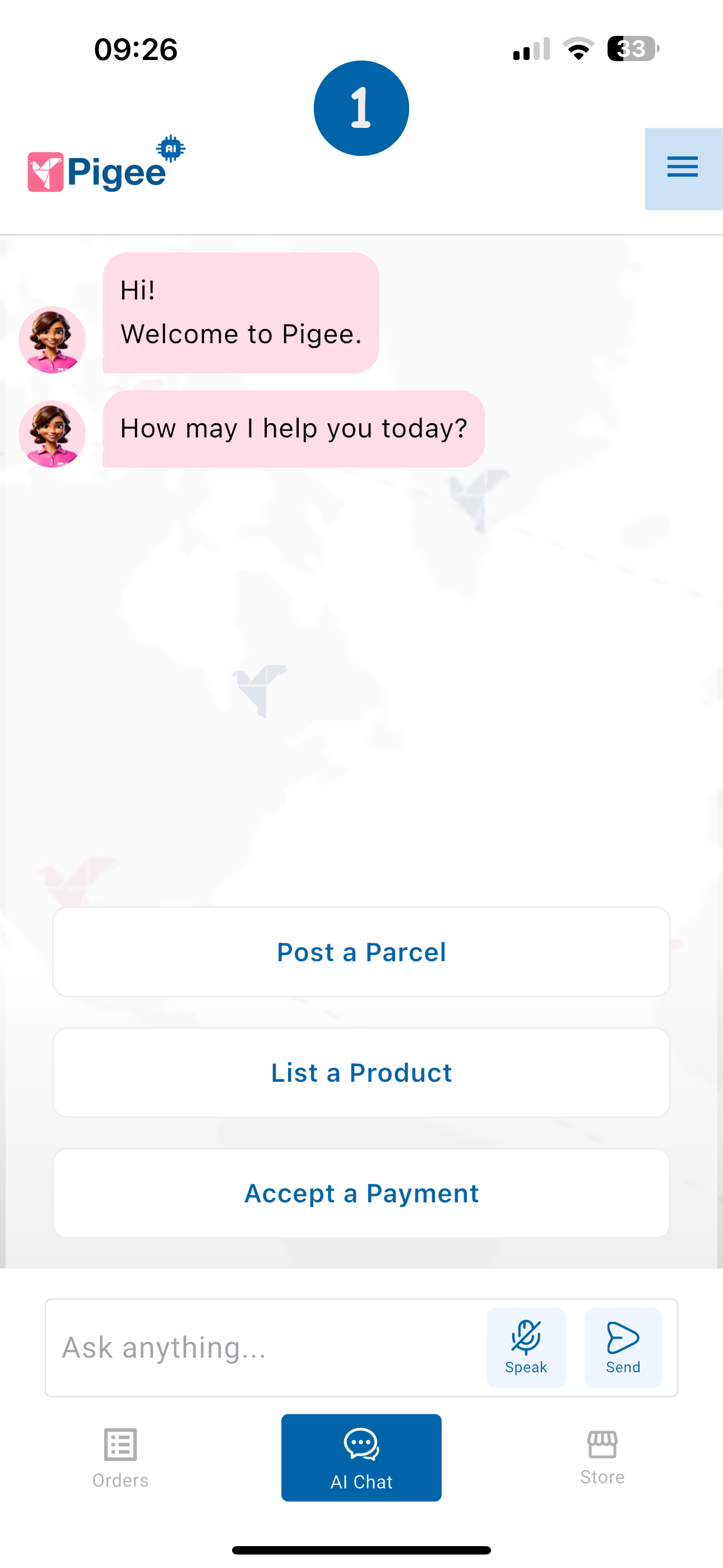
Step 1 – Open your menu
On your phone, open the Pigee app and make sure you’re logged in.
Tap the three lines at the top right side of the home screen to open your account menu.
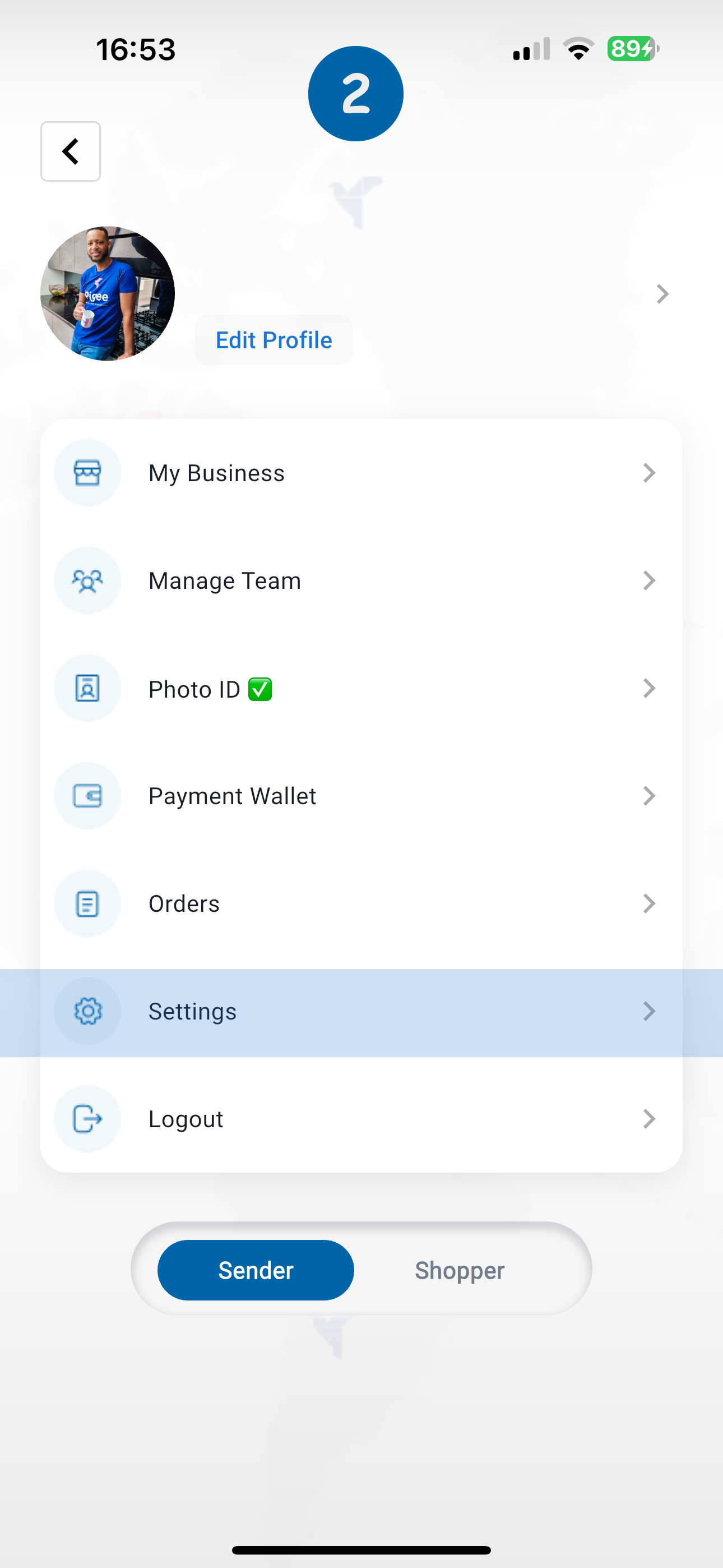
Step 2 – Go to Settings
From your profile screen, tap Settings.
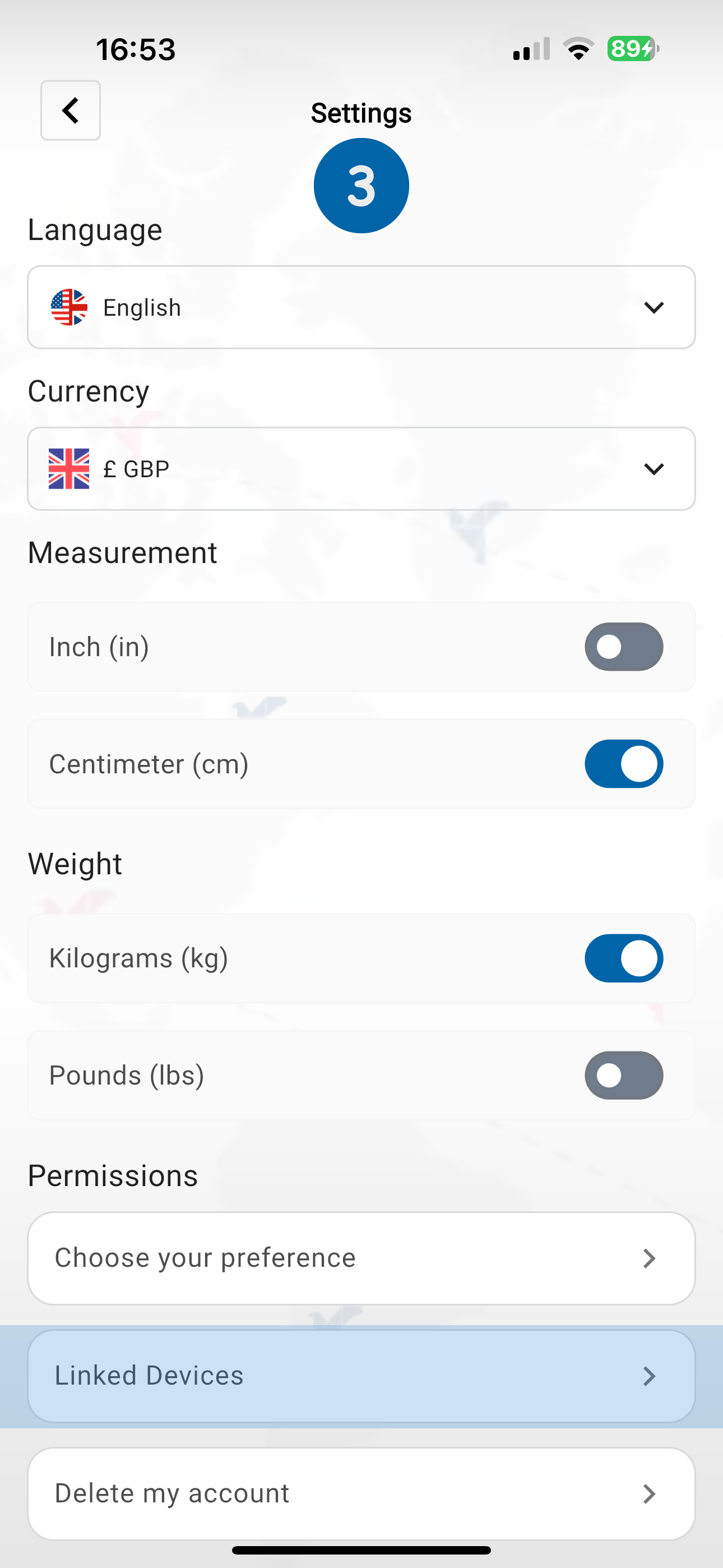
Step 3 – Go to Linked Devices
Scroll down and tap Linked Devices.
This screen is where you manage which computers and tablets are connected to your account.
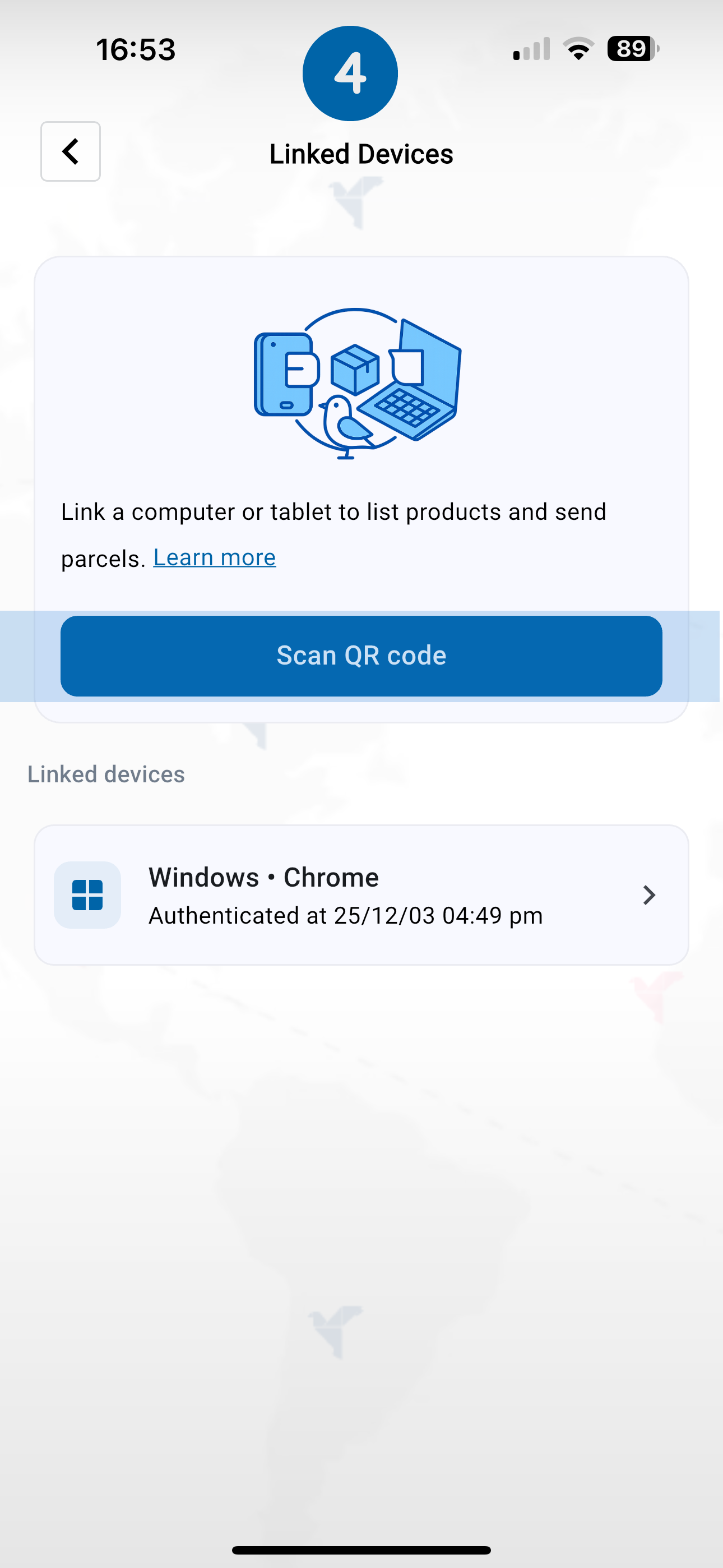
Step 4 – Scan the QR code on your computer
On your computer, open the Pigee web login page – you’ll see a large QR code.
On your phone, in the Linked Devices screen, tap Scan QR code.
Point your phone’s camera at the QR code on your computer screen until it’s recognised.
Your phone and browser are now linked. You’ll stay logged in on this device until you log out or remove it from the Linked Devices list.
Tip: After linking, you will see this computer listed under Linked Devices (for example, Windows · Chrome). If you lose a device, simply remove it from this list to disconnect it.